# Cloud setup guide

{% hint style="info" %}
This guide will help you to setup the card vault on AWS manually by setting up the various components
{% endhint %}

#### Creating EC2 instance

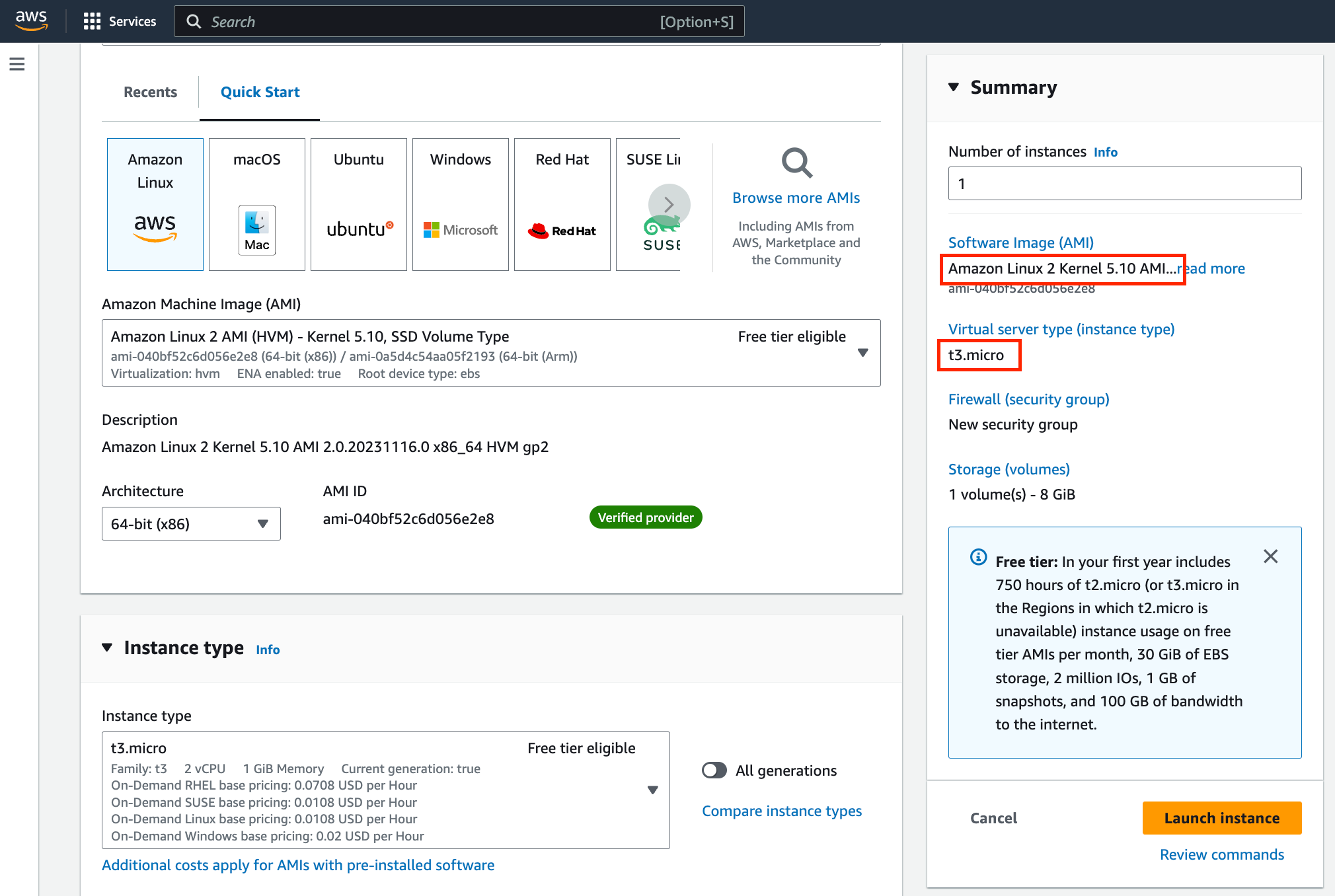
Log into your AWS account and create a new EC2 instance preferably on a t3.medium machine with an AMI that supports docker like Amazon Linux 2.

<figure><img src="https://1943537505-files.gitbook.io/~/files/v0/b/gitbook-x-prod.appspot.com/o/spaces%2Fkf7BGdsPkCw9nalhAIlE%2Fuploads%2Fgit-blob-dfa7e61eb84a1a28a8aae82eaad458607ce76aca%2Fimage.png?alt=media" alt="" width="563"><figcaption><p>Creating an EC2</p></figcaption></figure>

{% hint style="warning" %}
Ensure to manage your instances' (EC2 and RDS) security group rules are selectively enabled for the application subnet and not exposed to the internet. (The locker application should not be accessible via internet)
{% endhint %}

#### Install docker on the EC2 instance

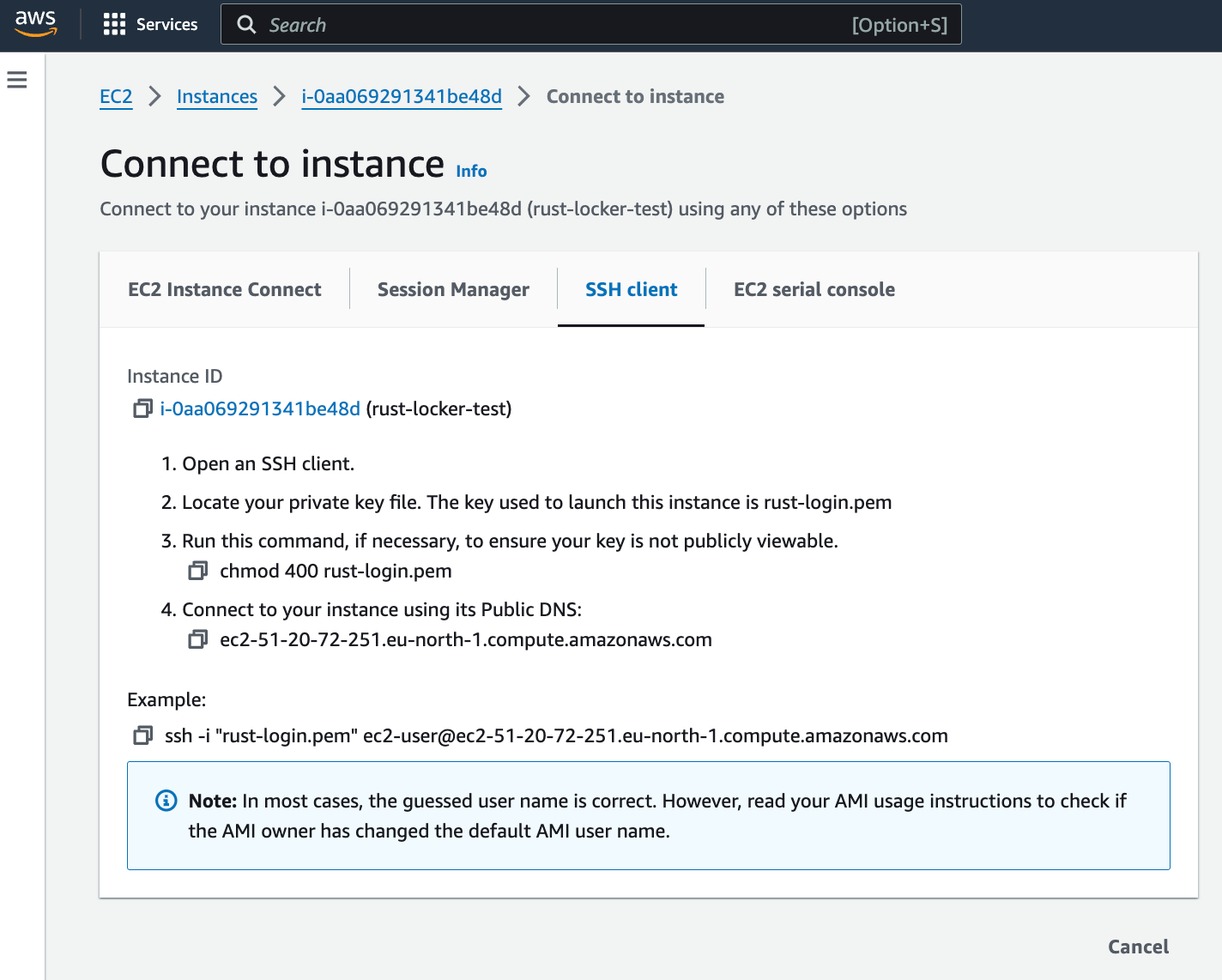
Connect to your EC2 instance using the SSH client via a terminal

<figure><img src="https://1943537505-files.gitbook.io/~/files/v0/b/gitbook-x-prod.appspot.com/o/spaces%2Fkf7BGdsPkCw9nalhAIlE%2Fuploads%2Fgit-blob-ac10f1636c56b68b97a50eddc9a8cceea5684b2f%2Fimage.png?alt=media" alt="" width="563"><figcaption><p>Connect to your EC2</p></figcaption></figure>

Once you SSH into the EC2 instance, run the following commands on the terminal to install docker

```bash
amazon-linux-extras install docker -y
```

Run the following command to start docker

```bash
systemctl start docker
```

After starting the docker run the following command to pull the `hyperswitch-card-vault` docker image

```bash
docker pull juspaydotin/hyperswitch-card-vault:latest
```

#### Setup Database (AWRDS)

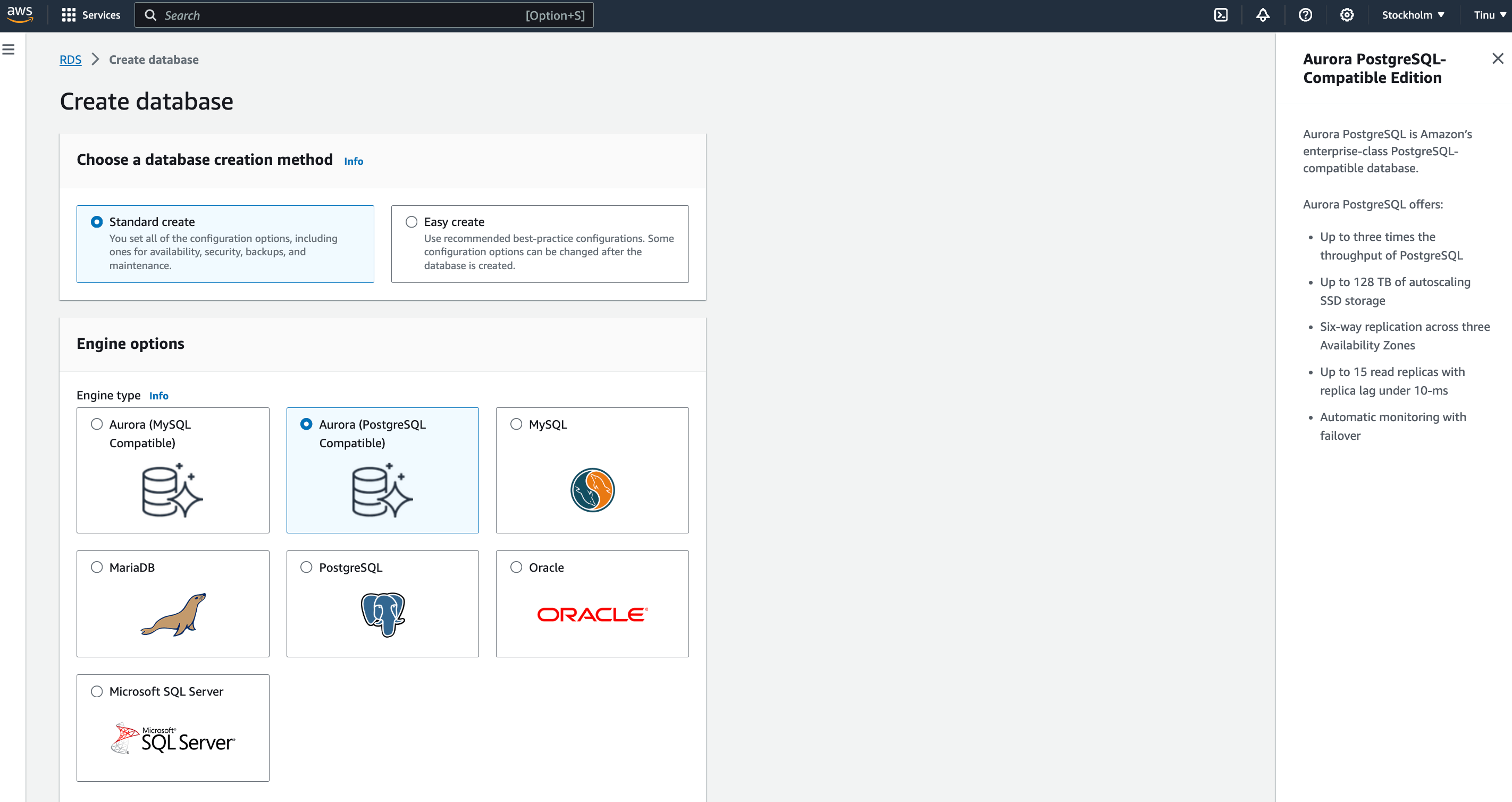
* Create an RDS with the latest `postgres` preferably with `Aurora` and select a storage of `t4g medium`. (Record the master username and password securely for further use in setup)
* Ensure to add the EC2 instance to database's inbound/outbound rules and vice-versa (In the default set up the rules are set to allow all traffic)

<figure><img src="https://1943537505-files.gitbook.io/~/files/v0/b/gitbook-x-prod.appspot.com/o/spaces%2Fkf7BGdsPkCw9nalhAIlE%2Fuploads%2Fgit-blob-852de691beee8489a78d092c31c25e87fe1d45d7%2Fimage.png?alt=media" alt="" width="563"><figcaption><p>Creating an RDS</p></figcaption></figure>

* To run the migrations install `psql` in the EC2 instance

```bash
sudo yum install postgresql-server postgresql-contrib
```

```bash
sudo amazon-linux-extras install postgresql10
```

* Run the migrations using the following commands

```bash
export DB_USER="<your-database-user>"
export DB_PASS="<your-database-password>" # this is not the master password
export DB_NAME="locker"

sudo psql -h <database-url> -U <master-username> -W -e -c \
 "CREATE USER $DB_USER WITH PASSWORD '$DB_PASS' SUPERUSER CREATEDB CREATEROLE INHERIT LOGIN;"
sudo psql -h <database-url> -U <master-username> -W -e -c \
 "CREATE DATABASE $DB_NAME WITH OWNER = $DB_USER;"
```

Now, open sql interactively with the following command

```bash
sudo psql -h <database-url> -U $DB_USER -W locker
```

and paste the contents from the below mentioned migration files

* [FILE - 1](https://github.com/juspay/hyperswitch-card-vault/blob/main/migrations/2023-10-21-104200_create-tables/up.sql): Creating initial tables
* [FILE - 2](https://github.com/juspay/hyperswitch-card-vault/blob/main/migrations/2023-10-26-072935_duplication-table/up.sql): Creating duplication tables

#### Setup KMS

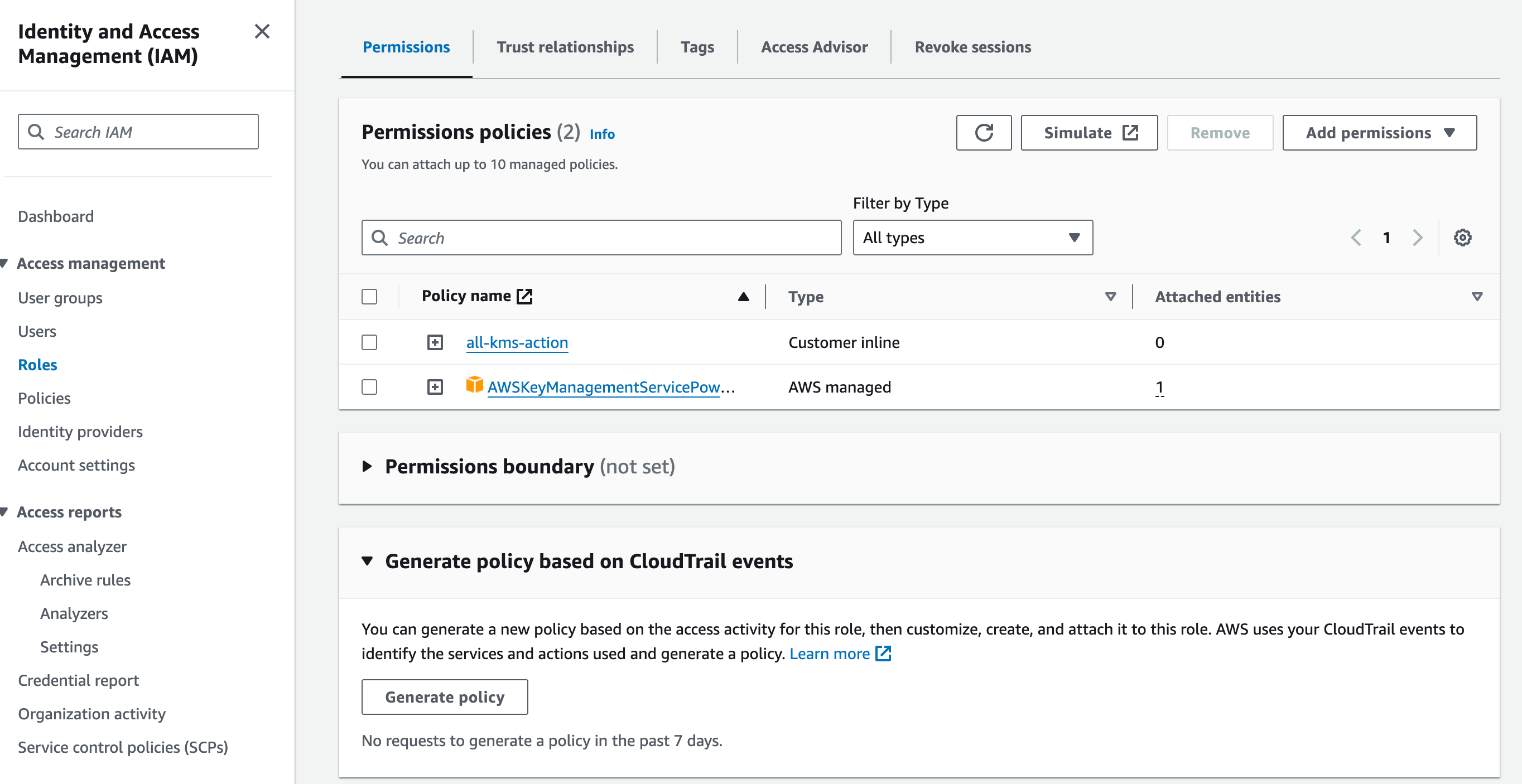
Before setting up KMS, create a new IAM role for your EC2 instance to allow connection to KMS. Use `AWS service` as the trusted entity type and add permissions for `AWSKeyManagementServicePowerUser` and create an inline policy allowing `All KMS actions`.

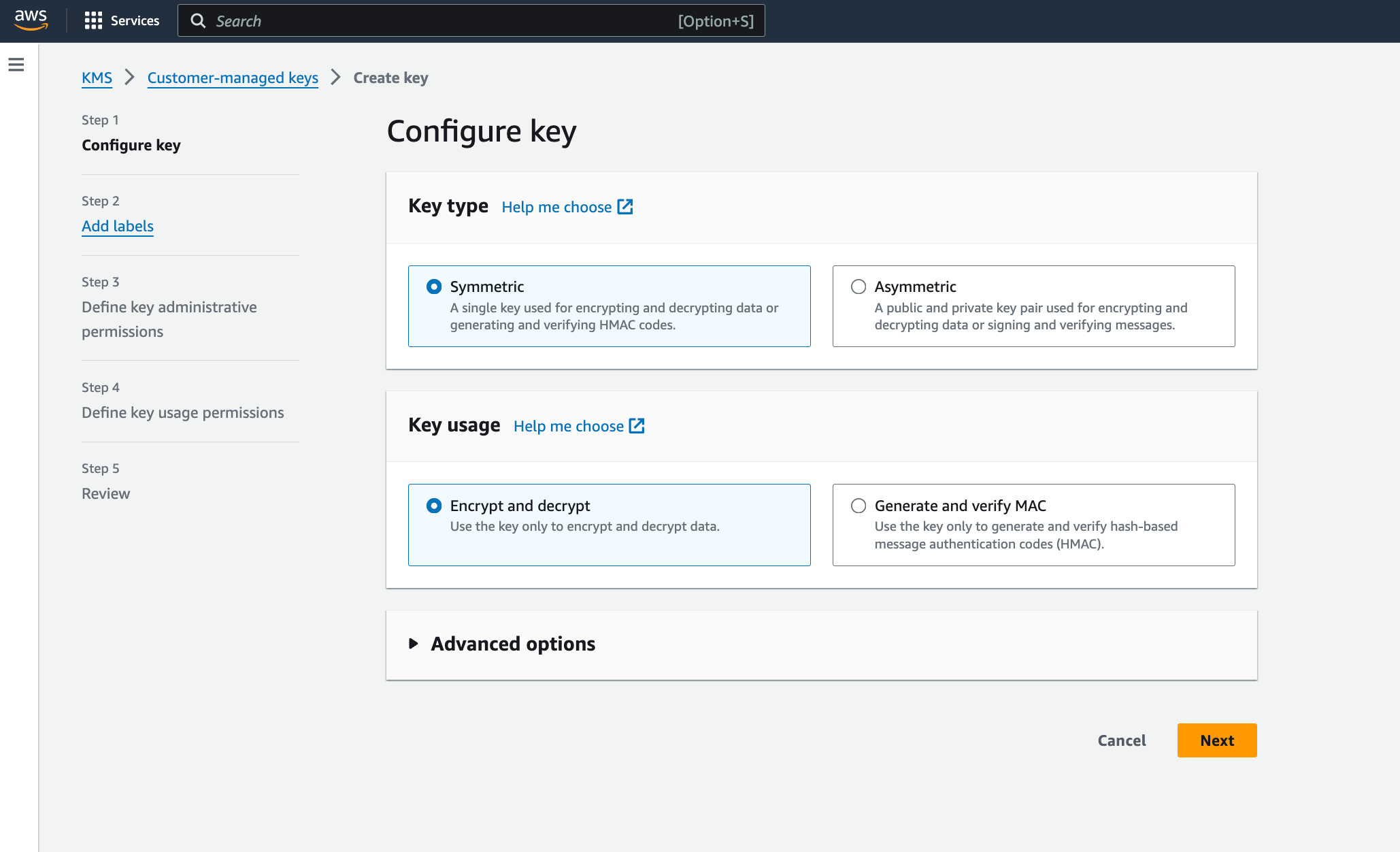
Now, create a KMS key pair on AWS with the key type as `symmetric` and the key usage as Encrypt and Decrypt. Ensure to add the IAM role above in the key administrative permissions and key usage permissions.

<figure><img src="https://1943537505-files.gitbook.io/~/files/v0/b/gitbook-x-prod.appspot.com/o/spaces%2Fkf7BGdsPkCw9nalhAIlE%2Fuploads%2Fgit-blob-3507c05efe1851aa5a0aeb2afaeb57a6d7bbef33%2Fimage.png?alt=media" alt="" width="563"><figcaption><p>Configuring KMS</p></figcaption></figure>

<figure><img src="https://1943537505-files.gitbook.io/~/files/v0/b/gitbook-x-prod.appspot.com/o/spaces%2Fkf7BGdsPkCw9nalhAIlE%2Fuploads%2Fgit-blob-75cc233f0adc5caa4fe19f9a89bcad34370ea70f%2Fimage.png?alt=media" alt="" width="563"><figcaption><p>Creating IAM roles</p></figcaption></figure>

#### Generating the keys

To generate the `master key` and the `custodian keys` use the following command after cloning the repository.

```bash
git clone https://github.com/juspay/hyperswitch-card-vault.git
cd hyperswitch-card-vault
cargo run --bin utils -- master-key
```

To generate the `JWE` and `JWS` keys run the following commands

```
# Generating the private keys
openssl genrsa -out locker-private-key.pem 2048
openssl genrsa -out tenant-private-key.pem 2048

# Generating the public keys
openssl rsa -in locker-private-key.pem -pubout -out locker-public-key.pem
openssl rsa -in tenant-private-key.pem -pubout -out tenant-public-key.pem
```

{% hint style="info" %}
We recommend generating the Master and JWE/JWS keys as mentioned below in the local setup guide outside of this EC2 machine for better security
{% endhint %}

#### KMS encrypting the keys

After generating your keys and setting up of KMS, run the following command to KMS encrypt the keys.

```bash
function kms_encrypt() {
    xargs -I {} -0 echo -n "{}" | xargs -I {} -0 aws kms encrypt --key-id <your-kms-key-id> --region <your-kms-region> --plaintext "{}"
}
# substitute this in the above mentioned envfile (LOCKER__DATABASE__PASSWORD)
echo -n "<database password>" | kms_encrypt

# substitute this in the above mentioned envfile (LOCKER__SECRETS__MASTER_KEY)
echo -n "<generated master key>" | kms_encrypt

# substitute this in the above mentioned envfile (LOCKER__SECRETS__LOCKER_PRIVATE_KEY)
echo -n '<locker private key>' | kms_encrypt

# substitute this in the above mentioned envfile (LOCKER__SECRETS__TENANT_PUBLIC_KEY)
echo -n '<tenant public key>' | kms_encrypt
 
```

#### Update Config files

* Create an `env-file` in the instance and paste the environment variables mentioned below

```bash
LOCKER__SERVER__HOST=0.0.0.0
LOCKER__SERVER__PORT=8080
LOCKER__LOG__CONSOLE__ENABLED=true
LOCKER__LOG__CONSOLE__LEVEL=DEBUG
LOCKER__LOG__CONSOLE__LOG_FORMAT=default

LOCKER__DATABASE__USERNAME= # add the database user created above
LOCKER__DATABASE__PASSWORD= # add the kms encrypted password here (kms encryption process mentioned below)
LOCKER__DATABASE__HOST= # add the host of the database (database url)
LOCKER__DATABASE__PORT=5432 # if used differently mention here
LOCKER__DATABASE__DBNAME=locker

LOCKER__LIMIT__REQUEST_COUNT=100
LOCKER__LIMIT__DURATION=60

LOCKER__SECRETS__TENANT=hyperswitch
LOCKER__SECRETS__MASTER_KEY= # kms encrypted master key
LOCKER__SECRETS__LOCKER_PRIVATE_KEY= # kms encrypted locker private key
LOCKER__SECRETS__TENANT_PUBLIC_KEY= # kms encrypted locker private key

LOCKER__AWS_KMS__KEY_ID= # kms id used to encrypt it below
LOCKER__AWS_KMS__REGION= # kms region used
```

#### Running the Locker

After the above changes are done, run the following command to start the locker

```bash
docker run --env-file envfile -d --net=host juspaydotin/hyperswitch-card-vault:latest
```

#### Unlock the locker

Once the locker is up and running, use the 2 key custodian keys generated earlier securely to unlock the locker for use.

The following cURLs are to be used to provide keys

<pre class="language-bash"><code class="lang-bash"># temporary turn of saving to history to run the following commands
unset HISTFILE 

# key 1
<strong> curl -X 'POST' \
</strong>  'localhost:8080/custodian/key1' \
  -H 'accept: text/plain' \
  -H 'Content-Type: application/json' \
  -d '{
  "key": &#x3C;key 1>
}'

# key 2
 curl -X 'POST' \
  'localhost:8080/custodian/key2' \
  -H 'accept: text/plain' \
  -H 'Content-Type: application/json' \
  -d '{
  "key": &#x3C;key 2>
}'

# decrypt
<strong> curl -X 'POST' 'localhost:8080/custodian/decrypt'
</strong></code></pre>

If the last cURL replies with `Decrypted Successfully`, we are ready to use the locker.

#### Integrating it with Hyperswitch

To start using it with Hyperswitch application update the following environment variables while deploying the Hyperswitch Server. To use it with other applications use the Vault URL and JWE keys.

```bash
ROUTER__LOCKER__HOST= # add the ip address of the ec2 instance created
ROUTER__JWEKEY__VAULT_ENCRYPTION_KEY= # add the JWE public key of locker generated above
ROUTER__JWEKEY__VAULT_PUBLIC_KEY= # add the JWE private key of tenant generated above
```