> For the complete documentation index, see [llms.txt](https://docs.hyperswitch.io/llms.txt). Markdown versions of documentation pages are available by appending `.md` to page URLs; this page is available as [Markdown](https://docs.hyperswitch.io/other-features/payment-orchestration/quickstart/payment-methods-setup/test-credentials.md).
# Test Credentials
Key to configure and test different connectors in Juspay Hyperswitch
{% hint style="info" %}
This section gives you an overview of how you can make test transactions for the payment methods you have enabled in Juspay Hyperswitch.
{% endhint %}
### Testing Cards across different Connectors
You might have configured multiple connectors on the Hyperswitch Dashboard. If you wish to ensure sanity of connector configuration, you can target and test the particular connector.
**Step 1**: Log on to Hyperswitch Dashboard
**Step 2**: Go to Smart Router > Simple Configuration
**Step 3**: Add all the Gateways you wish to test and set highest priority to your target Gateway
**Step 4**: Go to Home > Preview Checkout, to open the Unified Checkout (this will be a reflection of payment experience which your customer will get)
**Step 5**: Enter card details as per the table below. Please note that test credentials vary across each connector.
#### Test Cards for popular connectors
Simulate a successful test card payment with the following credentials
| Connector | Card Number | MM/YY | CVV | Reference - More Test Credentials |
| --------------- | ---------------- | ----- | --- | ----------------------------------------------------------------------------------------------------------- |
| Adyen | 4000020000000000 | 03/30 | 737 | [Click here](https://docs.adyen.com/development-resources/testing/test-card-numbers) |
| Bluesnap | 6011000180331112 | 02/26 | 123 | [Click here](https://developers.bluesnap.com/reference/test-credit-cards) |
| Authorize.net | 4242424242424242 | 12/25 | 100 | [Click here](https://developer.authorize.net/hello_world/testing_guide.html) |
| Braintree | 4111111111111111 | 12/25 | 100 | [Click here](https://developer.paypal.com/braintree/docs/reference/general/testing/php#credit-card-numbers) |
| Checkout | 4242424242424242 | 12/25 | 100 | [Click here](https://www.checkout.com/docs/testing/test-cards) |
| Fiserv | 4005550000000019 | 02/35 | 123 | - |
| Global Payments | 4263970000005262 | 12/25 | 100 | [Click here](https://developer.globalpay.com/resources/test-card-numbers) |
| Nuvei | 4444333322221111 | 12/25 | 123 | [Click here](https://helpdesk.nuvei.com/doku.php?id=developer:integration_docs:testing-guide) |
| Stripe | 4242424242424242 | 12/25 | 100 | [Click here](https://stripe.com/docs/testing#cards) |
| Worldline | 4012000033330026 | 12/25 | 123 | [Click here](https://epayments.developer-ingenico.com/documentation/testcases/detail/visa) |
**Dummy Connector test cards**
* Different flows are available for dummy connector transactions, determined by the card number.
* For dummy connector cards, both the expiration date and CVV can be any future date and three-digit number, respectively.
* Dummy connectors only support payments and refunds.
* Payments made with dummy connectors expire after 2 days. Refunds will not be possible for expired payments.
**Non 3DS flows**
* Success
* 4111111111111111
* 4242424242424242
* 5555555555554444
* 38000000000006
* 378282246310005
* 6011111111111117
* Card declined
* 5105105105105100
* 4000000000000002
* Insufficient funds
* 4000000000009995
* Lost card
* 4000000000009987
* Stolen card
* 4000000000009979
**3DS flows**
* Success
* 4000003800000446
### Payment Methods Testing
In order to test payment methods like Klarna, Google Pay, follow the below instructions
#### Klarna - Direct integration test credentials
Simulate a successful payment with the following credentials
**United States**
```
Phone number: +1310668331
OTP: 123456 (Random 6-digit different from 999999)
```
**United Kingdom**
```
Phone number: +4408082580300
OTP: 123456 (Random 6-digit different from 999999)
```
For testing more scenarios, please refer [Klarna - Sample customer data](https://docs.klarna.com/resources/test-environment/sample-customer-data/)
#### Google Pay - Test credentials
In order to test Google Pay, you will have to use your Gmail account and join [Google's test user group](https://groups.google.com/g/googlepay-test-mode-stub-data).
You will land on Google's page which says "Congratulations! You now have access to our test suite! No further action is required."
Ensure that you are logged in to your Gmail account, hit the Google Pay option. You will automatically get all test cards on your user journey.
#### Apple Pay - Test credentials
In order to test Apple Pay, you will need to follow these steps written in [Apple Pay sandbox testing docs](https://developer.apple.com/apple-pay/sandbox-testing/).
Apple Pay provides test cards from various card companies and supported regions as well. To pay you can use TouchID on the Macbook or your iPhone. These devices should be configured in your Apple account.
**Unable to test Apple Pay successfully?**
1. Apple Pay sandbox testing is supported only if you are located in any of these [15 countries](https://developer.apple.com/apple-pay/sandbox-testing/).
2. Your Safari browser automatically detects your location from your System Preferences.
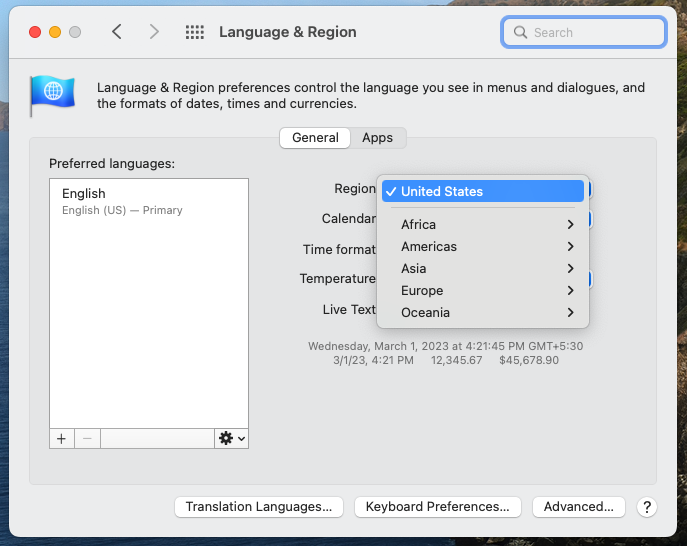
3. If you are not located in the supported countries, but still wish to test Apple Pay, please change your Region using Mac System preferences > Language & Region > choose any of the 15 supported countries.
---
# Agent Instructions
This documentation is published with GitBook. GitBook is the documentation platform designed so that both humans and AI agents can read, navigate, and reason over technical content effectively. Learn more at gitbook.com.
## Querying This Documentation
If you need additional information that is not directly available in this page, you can query the documentation by asking a question.
Perform an HTTP GET request on the following URL with the `ask` and `goal` query parameters:
```
GET https://docs.hyperswitch.io/other-features/payment-orchestration/quickstart/payment-methods-setup/test-credentials.md?ask=&goal=
```
`ask` is the immediate question: it should be specific, self-contained, and written in natural language.
`goal` is what the user is ultimately trying to achieve, the reason they need the answer. Sharing it helps GitBook give you a better, more relevant answer. A goal is most helpful when it describes the outcome the user wants rather than restating the question. For example, with `ask=how do I create an API token`, a goal like `automate deployments from our CI pipeline` lets GitBook tailor the answer to that use case.
The response will contain a direct answer to the question and relevant excerpts and sources from the documentation.
Use this mechanism when the answer is not explicitly present in the current page, you need clarification or additional context, or you want to retrieve related documentation sections.