> For the complete documentation index, see [llms.txt](https://docs.hyperswitch.io/llms.txt). Markdown versions of documentation pages are available by appending `.md` to page URLs; this page is available as [Markdown](https://docs.hyperswitch.io/integrations/wallets/apple-pay/in-app-and-web-transactions-processed-using-psp-decryption.md).
# In-App and Web Transactions Processed Using PSP Decryption
Learn how to process Apple Pay in-app and web transactions using PSP decryption, where the connector handles token decryption and authorization.
In this model:
* Hyperswitch forwards the **encrypted Apple Pay token** to the connector.
* Connector decrypts and authorizes the payment.
### **Configuration :**
#### **Prerequisites**
Before beginning to integrate Apple Pay with Hyperswitch, below prerequisites need to be fulfilled. *Please feel free to reach out to Hyperswitch support if you are stuck at any stage when integrating and testing Apple Pay.*
1. Apple Pay requires an Apple Developer Account. You can [Sign Up](https://developer.apple.com/programs/enroll/) for one here.
2. You must have a valid SSL certificate on your domain *(meaning it begins with **https**)*
Apple Pay requires additional steps, and requires macOS 10.12.1+ or iOS 10.1+. Follow the steps given below to setting up Apple Pay -
#### **Creating an Apple MerchantID**
You can create an Apple MerchantID referencing the video or following the steps mentioned below
* Log in to your [Apple Developer account](https://developer.apple.com/account/resources/certificates/list)
* Go to the [add MerchantIDs section](https://developer.apple.com/account/resources/identifiers/add/merchant), select Merchant IDs and click Continue
* Add a useful description *(like merchant id for test environment)*
* Enter a unique descriptive identifier *(like merchant.com.testdomain.sandbox)* and click Continue
* Verify the description and identifier and click on Register
#### **Validating Merchant Domain**
You can validate the merchant domain by following the steps mentioned below -
* Log in to your [Apple Developer account](https://developer.apple.com/account/resources/certificates/list), go to Identifiers and select the Merchant ID you created previously
* Under the Merchant Domains section, click on **Add Domain**
* Enter your *merchant\_domain* as domain and click on Save
* Click on Download and a **.txt** file will be downloaded
* Host this file on *merchant\_domain*/.well-known/apple-developer-merchantid-domain-association.txt
* Once you host the .txt file in the path mentioned above, click on Verify
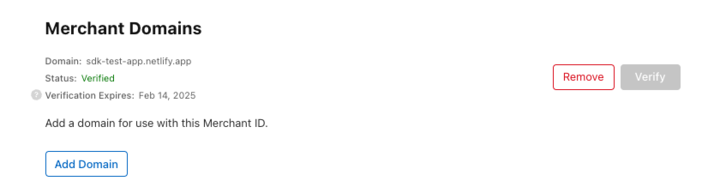
* Make sure the status is verified as shown in the following image
#### **Creating Apple MerchantID Certificate and Private Key**
You can create an Apple MerchantID certificate and private key by following the steps mentioned below -
**Note:** It is recommended that you keep all the generated files in the same workspace for the sake of simplicity
* Open a terminal and create **.csr** and **.key** file using the following command -
```cmd
openssl req -out uploadMe.csr -new -newkey rsa:2048 -nodes -keyout certificate_sandbox.key
```
* Enter your details asked in the prompt. You will get a **.csr** and **.key** file
* Log in to your [Apple Developer account](https://developer.apple.com/account/resources/certificates/list), go to Identifiers and select the Merchant ID you created previously
* Under the **Apple Pay Merchant Identity Certificate** section *(make sure you are not in the Apple Pay Payment Processing Certificate section)*, click on Create Certificate
* Upload the **.csr** file you just created by running the command *(it would be called **uploadMe.csr** if you copy-pasted the command)* and click on Continue
* You will get a **.cer** file on clicking on Download *(it will probably be named **merchant\_id.cer**)*
* You will need to convert this **.cer** file into a **.pem** file using the following command -
```cmd
openssl x509 -inform der -in merchant_id.cer -out certificate_sandbox.pem
```
#### **Configuring Apple Pay on Hyperswitch**
You can configure Apple Pay on Hyperswitch by following the steps mentioned below -
* Login to [Hyperswitch dashboard](https://app.hyperswitch.io/)
* In the Connectors tab, select your processor
* While selecting Payment Methods, click on Apple Pay in the Wallet section
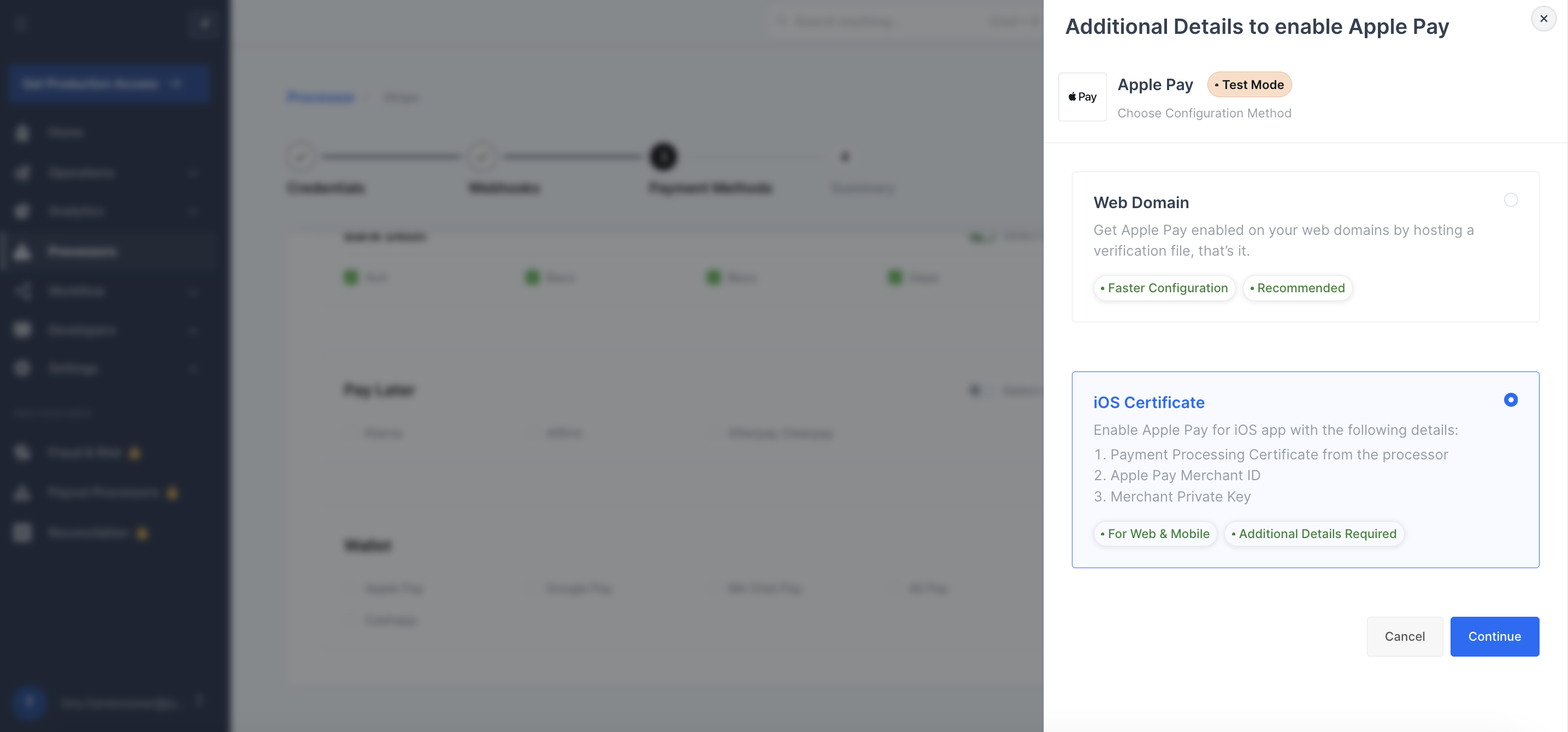
* Select the iOS Certificate option
* In Apple Merchant Identifier, add your identifier which you added while creating Apple MerchantID
* In Merchant Certificate, **base64 encode** the entire content of your **.pem** file *(it will be **certificate\_sandbox.pem**, if you used the exact command mentioned above)*, and enter the encoded data in the form field. Use the below command to base64 encode it.
```
base64 -i certificate_sandbox.pem
```
* In Merchant Private Key, **base64 encode** the entire content of your **.key** file *(it will be **certificate\_sandbox.key**, if you used the exact command mentioned above)*, and enter the encoded data in the Merchant PrivateKey form field. Use the below command to base64 encode it.
```
base64 -i certificate_sandbox.key
```
* Display Name should be your merchant name that you want to present to the customers when the make ApplePay payment on your platform.
* In Domain, enter `web` in the form field.
* In Domain Name, add the verified domain name you configured in Merchant Domains in Apple Developer Account.
#### **Creating Apple Pay Payment Processing Certificate**
* You will need to get a **.csr** file from your processor's dashboard, *(like Adyen, Cybersource)*
* Log in to your [Apple Developer account](https://developer.apple.com/account/resources/certificates/list), go to Identifiers and select the Merchant ID you created previously
* Under the **Apple Pay Payment Processing Certificate** section, click on Create Certificate
* After answering whether the Merchant ID will be processed exclusively in China mainland, click on Continue
* Upload the **.csr** you received from your processor and click Continue
* Click on the prompted Download button and you will get a .**cer** file, Upload this **.cer** file you received while creating Apple MerchantID Certificate on the processor's dashboard.
{% hint style="warning" %}
This final step is specific to the processor being used and is not necessary in Sandbox Test environment for some processors, such as Authorize.Net.
{% endhint %}
### Integrate with Xcode
Add the Apple Pay capability to your app. In Xcode, open your project settings, click the Signing & Capabilities tab, and add the Apple Pay capability. You might be prompted to log in to your developer account at this point. Select the merchant ID you created earlier, and your app is ready to accept Apple Pay.
Enable the Apple Pay capability in Xcode
---
# Agent Instructions
This documentation is published with GitBook. GitBook is the documentation platform designed so that both humans and AI agents can read, navigate, and reason over technical content effectively. Learn more at gitbook.com.
## Querying This Documentation
If you need additional information that is not directly available in this page, you can query the documentation by asking a question.
Perform an HTTP GET request on the following URL with the `ask` and `goal` query parameters:
```
GET https://docs.hyperswitch.io/integrations/wallets/apple-pay/in-app-and-web-transactions-processed-using-psp-decryption.md?ask=&goal=
```
`ask` is the immediate question: it should be specific, self-contained, and written in natural language.
`goal` is what the user is ultimately trying to achieve, the reason they need the answer. Sharing it helps GitBook give you a better, more relevant answer. A goal is most helpful when it describes the outcome the user wants rather than restating the question. For example, with `ask=how do I create an API token`, a goal like `automate deployments from our CI pipeline` lets GitBook tailor the answer to that use case.
The response will contain a direct answer to the question and relevant excerpts and sources from the documentation.
Use this mechanism when the answer is not explicitly present in the current page, you need clarification or additional context, or you want to retrieve related documentation sections.