> For the complete documentation index, see [llms.txt](https://docs.hyperswitch.io/llms.txt). Markdown versions of documentation pages are available by appending `.md` to page URLs; this page is available as [Markdown](https://docs.hyperswitch.io/integrations/wallets/apple-pay/in-app-and-web-transactions-processed-using-hyperswitch-decryption.md).
# In-App and Web Transactions Processed Using Hyperswitch Decryption
Learn how to process Apple Pay in-app and web transactions using Hyperswitch decryption, including certificate setup and configuration steps.
In this flow Hyperswitch decrypts the token internally using your uploaded certificates and then transforms the raw data for any downstream connector.
#### **Mechanism:**
1. Frontend sends **encrypted Apple Pay token** to Hyperswitch.
2. Hyperswitch unwraps the token using your private key configured at Hyperswitch.
3. Hyperswitch maps the DPAN and Cryptogram to the destination PSP’s API.
### **Configuration :**
#### **Prerequisites**
Before beginning to integrate Apple Pay with Hyperswitch, below prerequisites need to be fulfilled. *Please feel free to reach out to Hyperswitch support if you are stuck at any stage when integrating and testing Apple Pay.*
1. Apple Pay requires an Apple Developer Account. You can [Sign Up](https://developer.apple.com/programs/enroll/) for one here.
2. You must have a valid SSL certificate on your domain *(meaning it begins with **https**)*
Apple Pay requires additional steps, and requires macOS 10.12.1+ or iOS 10.1+. Follow the steps given below to setting up Apple Pay -
#### **Creating an Apple MerchantID**
You can create an Apple MerchantID referencing the video or following the steps mentioned below
* Log in to your [Apple Developer account](https://developer.apple.com/account/resources/certificates/list)
* Go to the [add MerchantIDs section](https://developer.apple.com/account/resources/identifiers/add/merchant), select Merchant IDs and click Continue
* Add a useful description *(like merchant id for test environment)*
* Enter a unique descriptive identifier *(like merchant.com.testdomain.sandbox)* and click Continue
* Verify the description and identifier and click on Register
#### **Validating Merchant Domain**
You can validate the merchant domain by following the steps mentioned below -
* Log in to your [Apple Developer account](https://developer.apple.com/account/resources/certificates/list), go to Identifiers and select the Merchant ID you created previously
* Under the Merchant Domains section, click on **Add Domain**
* Enter your *merchant\_domain* as domain and click on Save
* Click on Download and a **.txt** file will be downloaded
* Host this file on *merchant\_domain*/.well-known/apple-developer-merchantid-domain-association.txt
* Once you host the .txt file in the path mentioned above, click on Verify
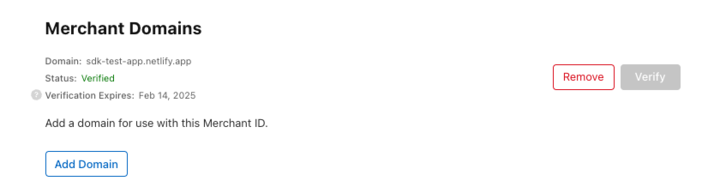
* Make sure the status is verified as shown in the following image
#### **Creating Apple MerchantID Certificate and Private Key**
You can create an Apple MerchantID certificate and private key by following the steps mentioned below -
**Note:** It is recommended that you keep all the generated files in the same workspace for the sake of simplicity
* Open a terminal and create **.csr** and **.key** file using the following command -
```cmd
openssl req -out uploadMe.csr -new -newkey rsa:2048 -nodes -keyout certificate_sandbox.key
```
* Enter your details asked in the prompt. You will get a **.csr** and **.key** file
* Log in to your [Apple Developer account](https://developer.apple.com/account/resources/certificates/list), go to Identifiers and select the Merchant ID you created previously
* Under the **Apple Pay Merchant Identity Certificate** section *(make sure you are not in the Apple Pay Payment Processing Certificate section)*, click on Create Certificate
* Upload the **.csr** file you just created by running the command *(it would be called **uploadMe.csr** if you copy-pasted the command)* and click on Continue
* You will get a **.cer** file on clicking on Download *(it will probably be named **merchant\_id.cer**)*
* You will need to convert this **.cer** file into a **.pem** file using the following command -
```cmd
openssl x509 -inform der -in merchant_id.cer -out certificate_sandbox.pem
```
#### **Configuring Apple Pay on Hyperswitch**
You can configure Apple Pay on Hyperswitch by following the steps mentioned below -
* Login to [Hyperswitch dashboard](https://app.hyperswitch.io/)
* In the Connectors tab, select your processor
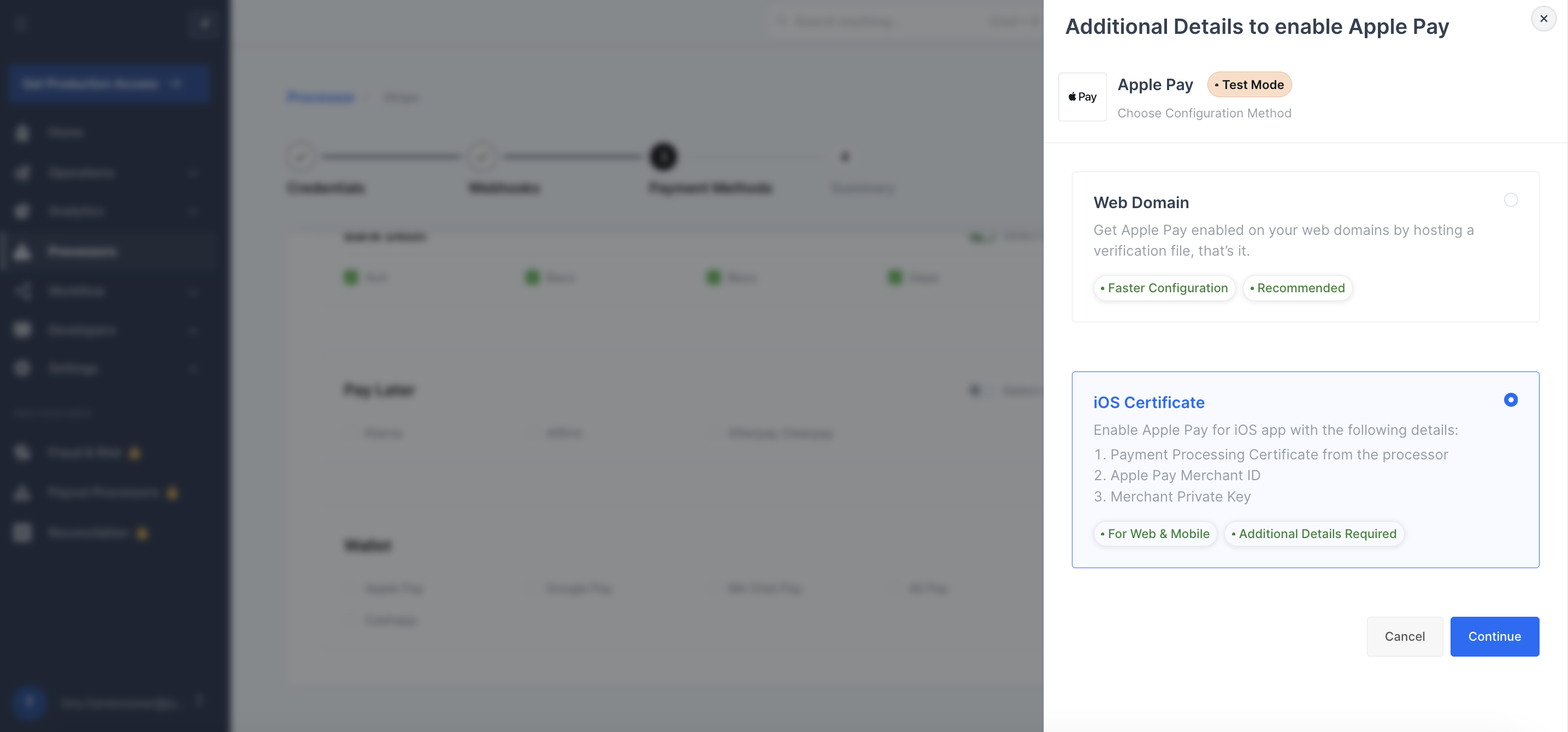
* While selecting Payment Methods, click on Apple Pay in the Wallet section
* Select the iOS Certificate option
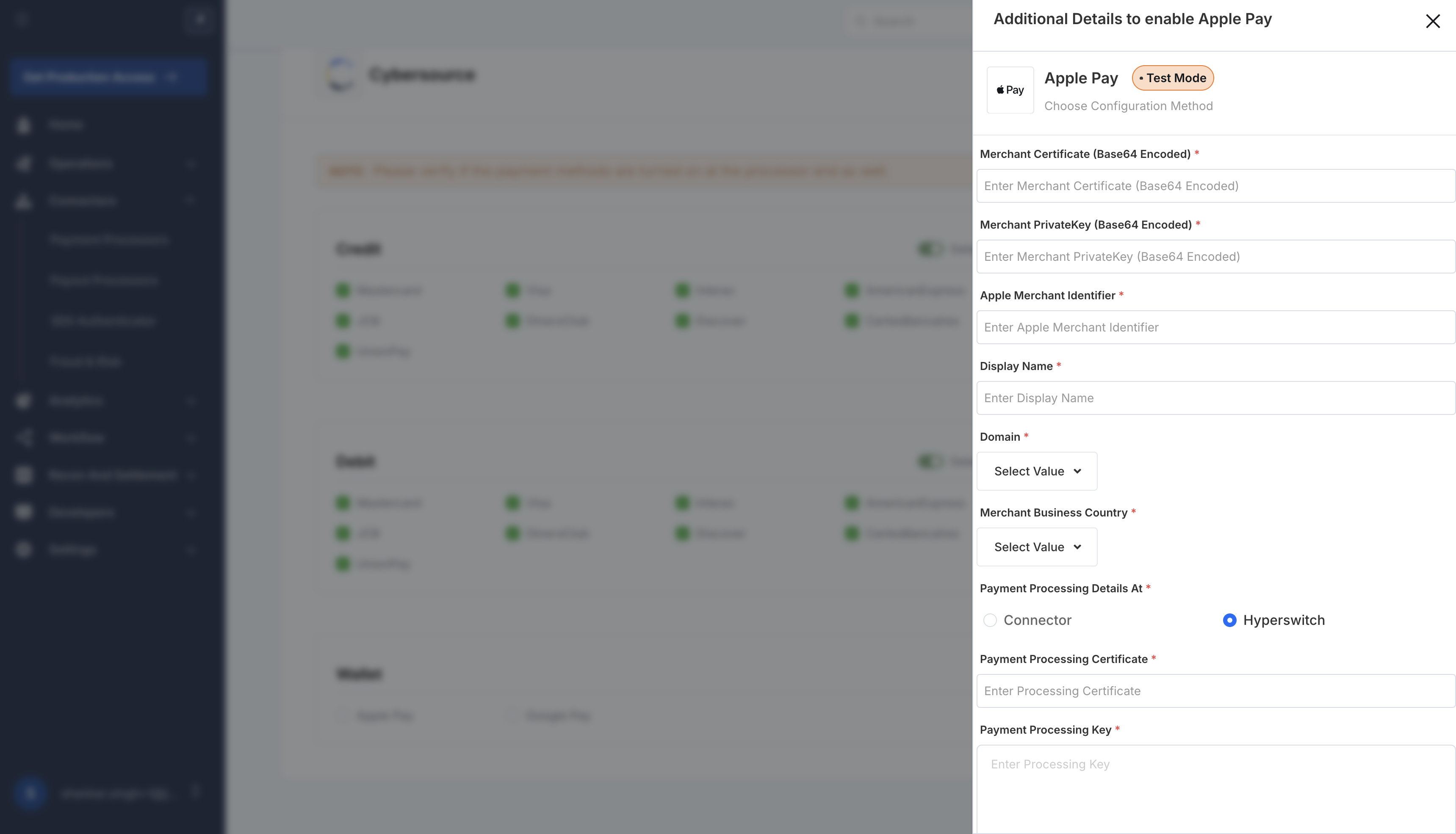
* In Apple Merchant Identifier, add your identifier which you added while creating Apple MerchantID
* In Merchant Certificate, **base64 encode** the entire content of your **.pem** file *(it will be **certificate\_sandbox.pem**, if you used the exact command mentioned above)*, and enter the encoded data in the form field. Use the below command to base64 encode it.
```
base64 -i certificate_sandbox.pem
```
* In Merchant Private Key, **base64 encode** the entire content of your **.key** file *(it will be **certificate\_sandbox.key**, if you used the exact command mentioned above)*, and enter the encoded data in the Merchant PrivateKey form field. Use the below command to base64 encode it.
```
base64 -i certificate_sandbox.key
```
* Display Name should be your merchant name that you want to present to the customers when the make ApplePay payment on your platform.
* In Domain, enter `web` in the form field.
* In Domain Name, add the verified domain name you configured in Merchant Domains in Apple Developer Account.
#### **Creating Apple Pay Payment Processing Certificate**
You can create an Apple Payment Processing Certificate and Payment Processing Key by following the steps mentioned below
* Note: It is recommended that you keep all the generated files in the same folder for the sake of simplicity
* Open a terminal and create .**key** file using the following command
```
openssl ecparam -name prime256v1 -genkey -noout -out ppc_private.key
```
* You can create .**csr** file using the following command and enter your details asked in the prompt. You will get a .**csr** file.
```
openssl req -out ppc_uploadMe.csr -new -key ppc_private.key
```
* Log in to your [Apple Developer account](https://developer.apple.com/account/resources/certificates/list), go to Identifiers and select the Merchant ID / Payment Platform Integrator ID you created previously
* Under the Apple Pay Payment Processing Certificate, click on Create Certificate
* Upload the .**csr** file you just created (it would be called uploadMe.csr if you copy-pasted the command) and click on Continue.
* You will get a .**cer** file on clicking Download (it will probably be named **apple\_pay.cer**).
* In Payment Processing Certificate, **base64 encode** the entire content of your .**cer** file and paste it.
```
base64 -i apple_pay.cer
```
* In Payment Processing Key, copy the content from **ppc\_private.key** file and paste it.
{% hint style="warning" %}
Please note since this flow involves decryption at Hyperswitch, you may need to write to your payment processor to get this feature enabled for your account. Stripe is one among them.
{% endhint %}
You can use the following text in the email
* Attach our PCI DSS AoC certificate and copy our Support team ().
* Stripe Account id: <`Enter your account id:` you can find it [here](https://dashboard.stripe.com/settings/user)>
* A detailed business description: <`One sentence about your business`>. The business operates across `xx` countries and has customers across the world.
* Feature Request: We are using Hyperswitch, a Level 1 PCI DSS 3.2.1 compliant Payments Orchestrator, to manage payments on our website. In addition to Stripe, since we are using other processors as well to process payments across multiple geographies, we wanted to use Hyperswitch’s Payment Processing certificate to decrypt Apple pay tokens and send the decrypted Apple pay tokens to Stripe. So, please enable processing decrypted Apple pay token feature on our Stripe account. We’ve attached Hyperswitch’s PCI DSS AoC for reference.
#### Integrate with Xcode
Add the Apple Pay capability to your app. In Xcode, open your project settings, click the Signing & Capabilities tab, and add the Apple Pay capability. You might be prompted to log in to your developer account at this point. Select the merchant ID you created earlier, and your app is ready to accept Apple Pay.
Enable the Apple Pay capability in Xcode
---
# Agent Instructions
This documentation is published with GitBook. GitBook is the documentation platform designed so that both humans and AI agents can read, navigate, and reason over technical content effectively. Learn more at gitbook.com.
## Querying This Documentation
If you need additional information that is not directly available in this page, you can query the documentation by asking a question.
Perform an HTTP GET request on the following URL with the `ask` and `goal` query parameters:
```
GET https://docs.hyperswitch.io/integrations/wallets/apple-pay/in-app-and-web-transactions-processed-using-hyperswitch-decryption.md?ask=&goal=
```
`ask` is the immediate question: it should be specific, self-contained, and written in natural language.
`goal` is what the user is ultimately trying to achieve, the reason they need the answer. Sharing it helps GitBook give you a better, more relevant answer. A goal is most helpful when it describes the outcome the user wants rather than restating the question. For example, with `ask=how do I create an API token`, a goal like `automate deployments from our CI pipeline` lets GitBook tailor the answer to that use case.
The response will contain a direct answer to the question and relevant excerpts and sources from the documentation.
Use this mechanism when the answer is not explicitly present in the current page, you need clarification or additional context, or you want to retrieve related documentation sections.